


The best photo displays are the ones people can keep adding to. A shared Google Photos album gives your team one place to collect images; Slideshow Photos Album turns that collection into a screen-ready presentation.

Start with an album people can actually open
Create an album in Google Photos, add a few images, select Share and copy its shared link. Open that link in a private browser window before you begin. If it asks for a Google sign-in, visitors and display devices may not be able to load it either.
Choose photos you have permission to show. A reception screen, event wall and internal staff display can have very different audiences, so the album you share should match the screen where it will appear.
Build the display in the wizard
At photos.advertiseme.tv, open the Wizard and paste the shared album URL. The guided flow moves through Album, Style, Features and Create. You can add a title, then choose the look and settings that fit your display.
The screenshot above shows the first wizard step. It is a useful check for the exact input the tool needs: the complete shared Google Photos album link. After creating the presentation, preview it on the actual screen size before you share it widely.
Keep the story moving
A live album is ideal for a team milestone, a family celebration or an ongoing community project. Contributors can add approved photos to the shared album, while the slideshow refreshes according to its display settings. That saves the repeated work of exporting and re-uploading a new video each time the story changes.
Use a clear album name, select landscape photos when the target screen is wide, and review the first few slides for readability. A small amount of curation makes a much stronger presentation.
Bring it into Advertise Me digital signage
Once the slideshow looks right, copy its display or embed link. In an Advertise Me TV setup that supports web page content, add that URL to a screen or playlist, test it on the target player, and schedule it alongside your usual announcements. Use the signage schedule to decide when the photo story appears; manage the images in the shared album.
For a dedicated display, open the link full screen on the player. For a mixed-content screen, place it in a layout that leaves room for notices or branding, then verify that the embedded view fits.


Our latest digital signage software projects
GOOGLE PHOTOS SHARED ALBUM LIVE SLIDESHOW TOOL
Create a live slideshow from a shared Google Photos album and show it on digital signage screens.
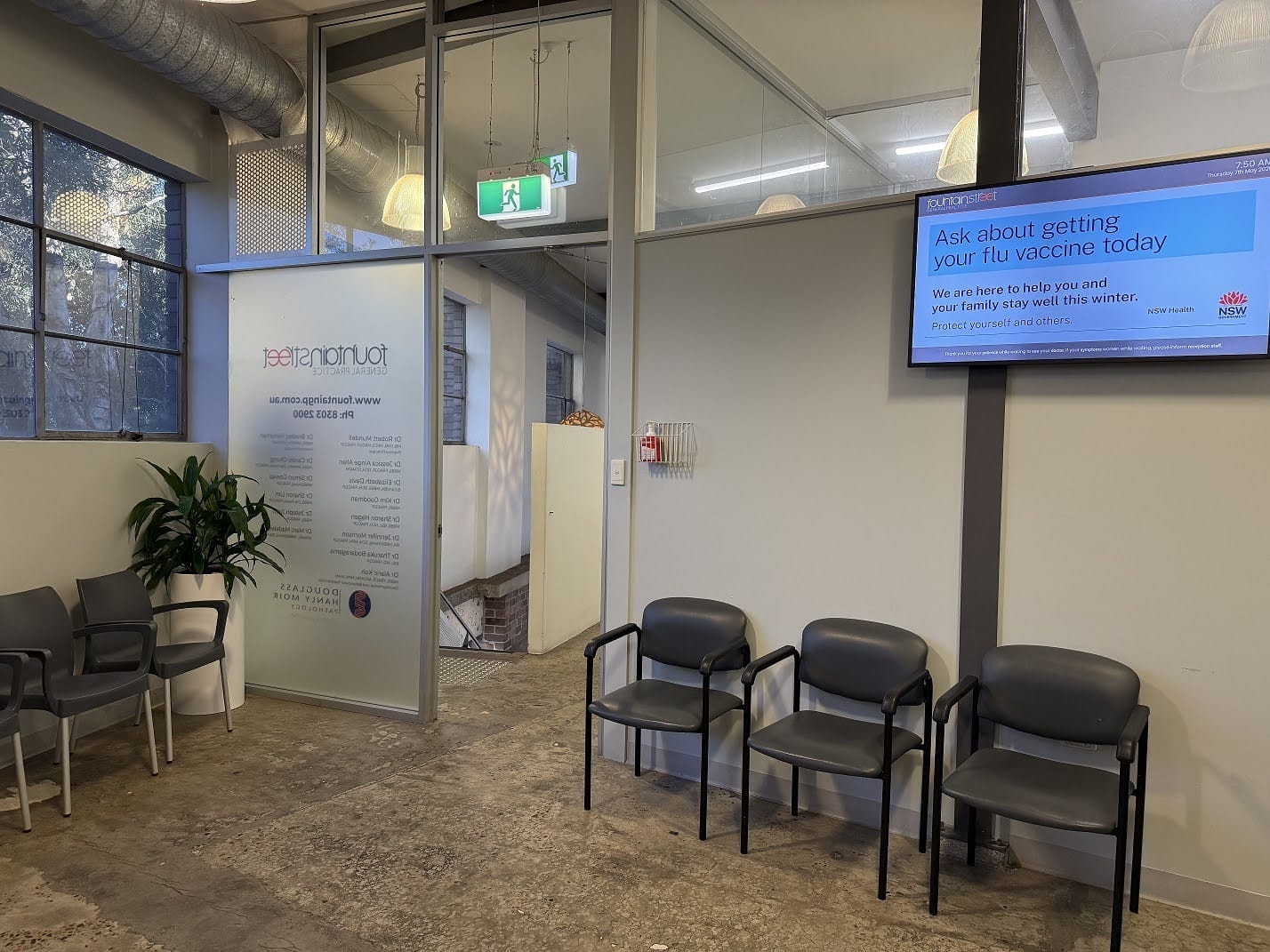
FOUNTAIN STREET GENERAL PRACTICE MEDICAL BOARDS
About this digital signage project Delivering a modern [...]
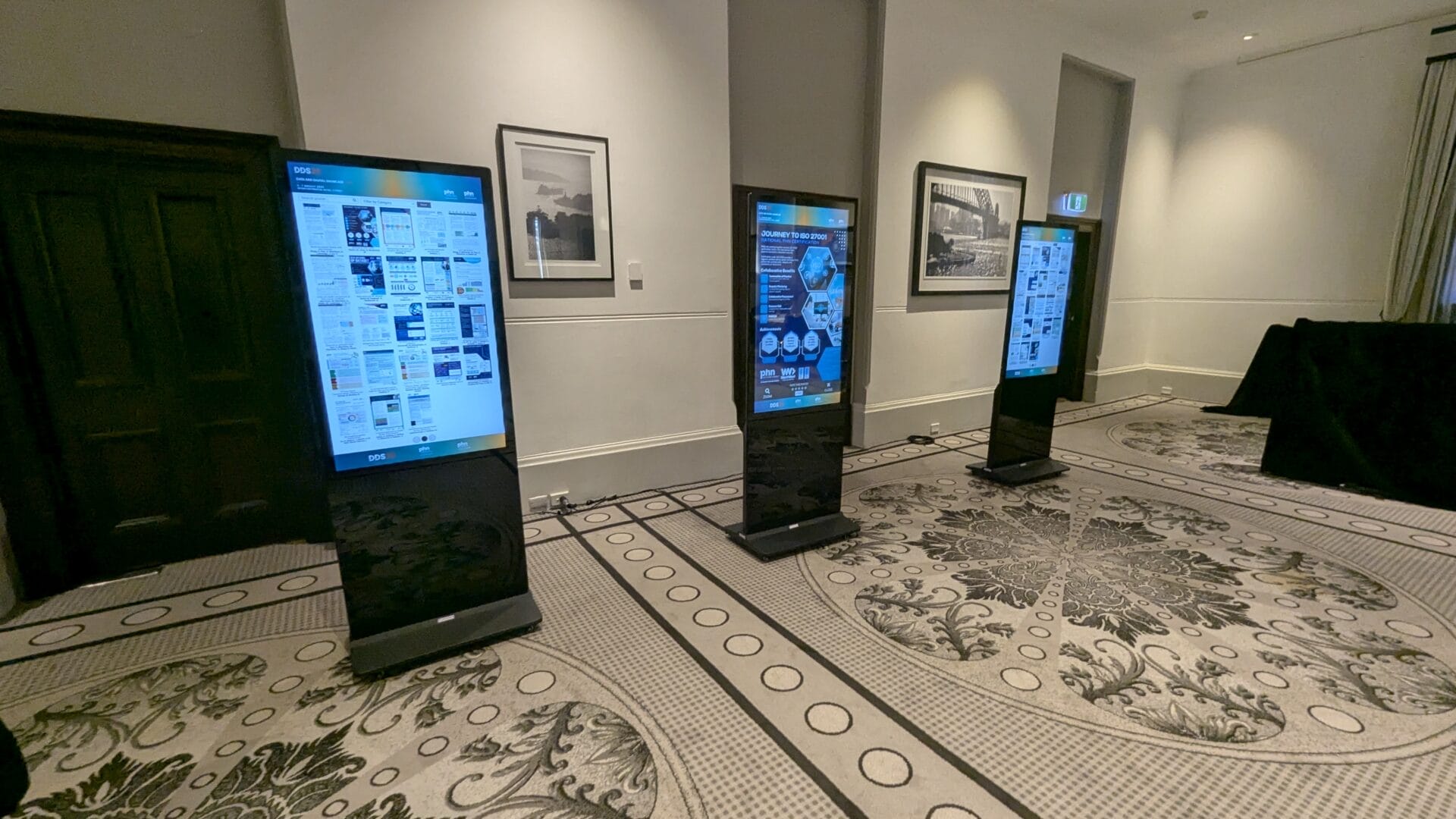
EPOSTERS CONFERENCE EVENT FOR CESPHN DDS25
About this digital signage project Advertise Me partnered [...]
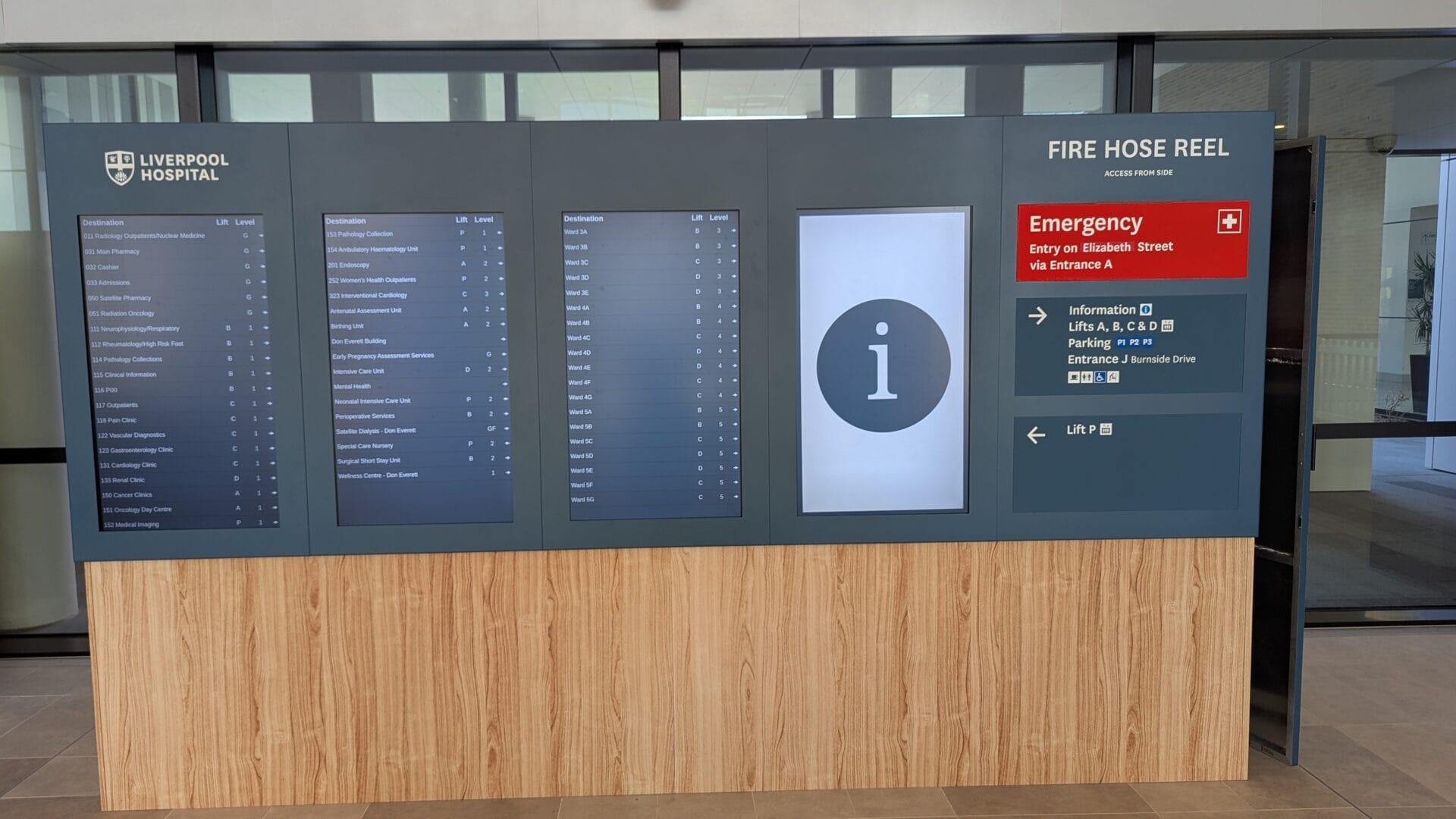
DIRECTORY BOARD LIVERPOOL HOSPITAL
About this digital signage project Our innovative Digital [...]
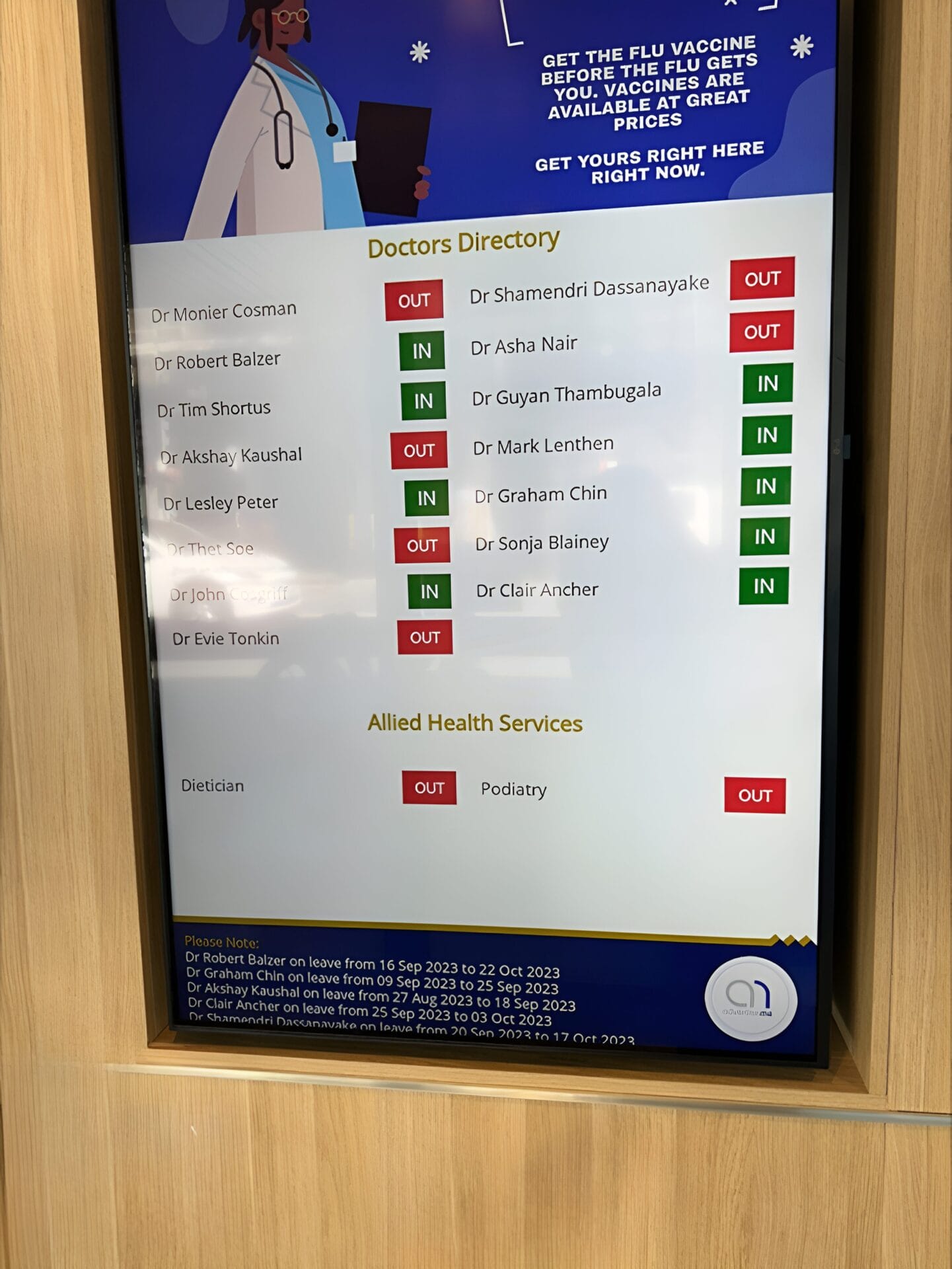
FULLERTON BROADWAY MEDICAL CENTRE DOCTOR DIRECTORY MEDICAL BOARD
About this digital signage project Our Digital Signage [...]
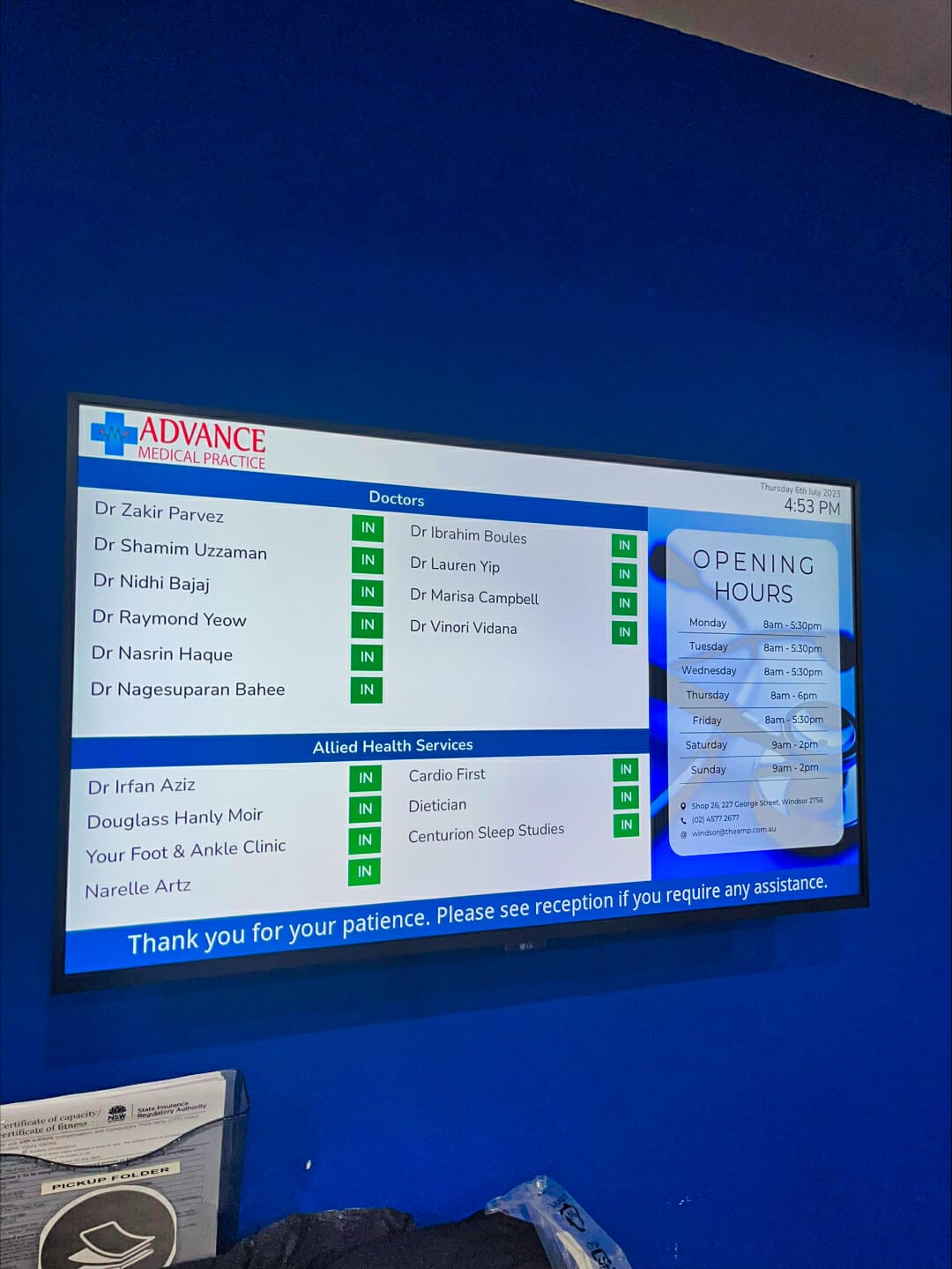
ADVANCE MEDICAL PRACTICE CENTRE DOCTOR DIRECTORY MEDICAL BOARD
About this digital signage project We used our [...]
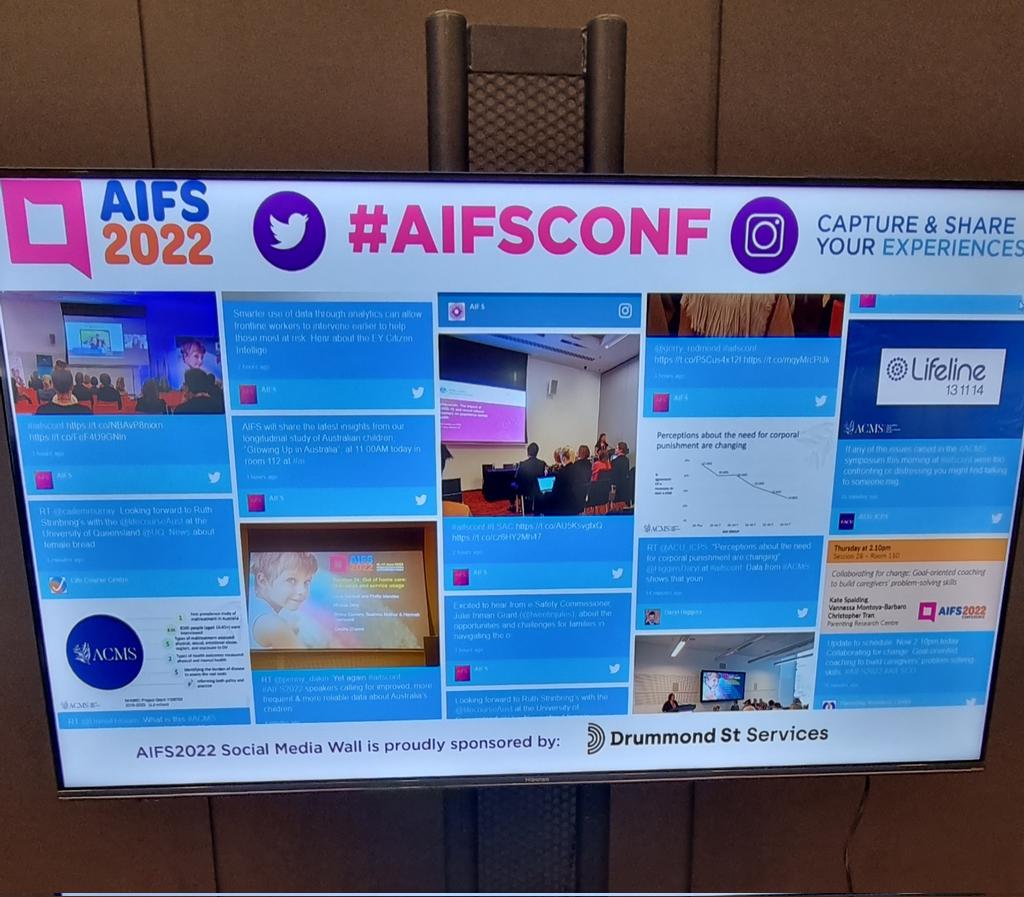
SOCIAL WALL FOR AIFCONF 2022
About this digital signage project We used our [...]
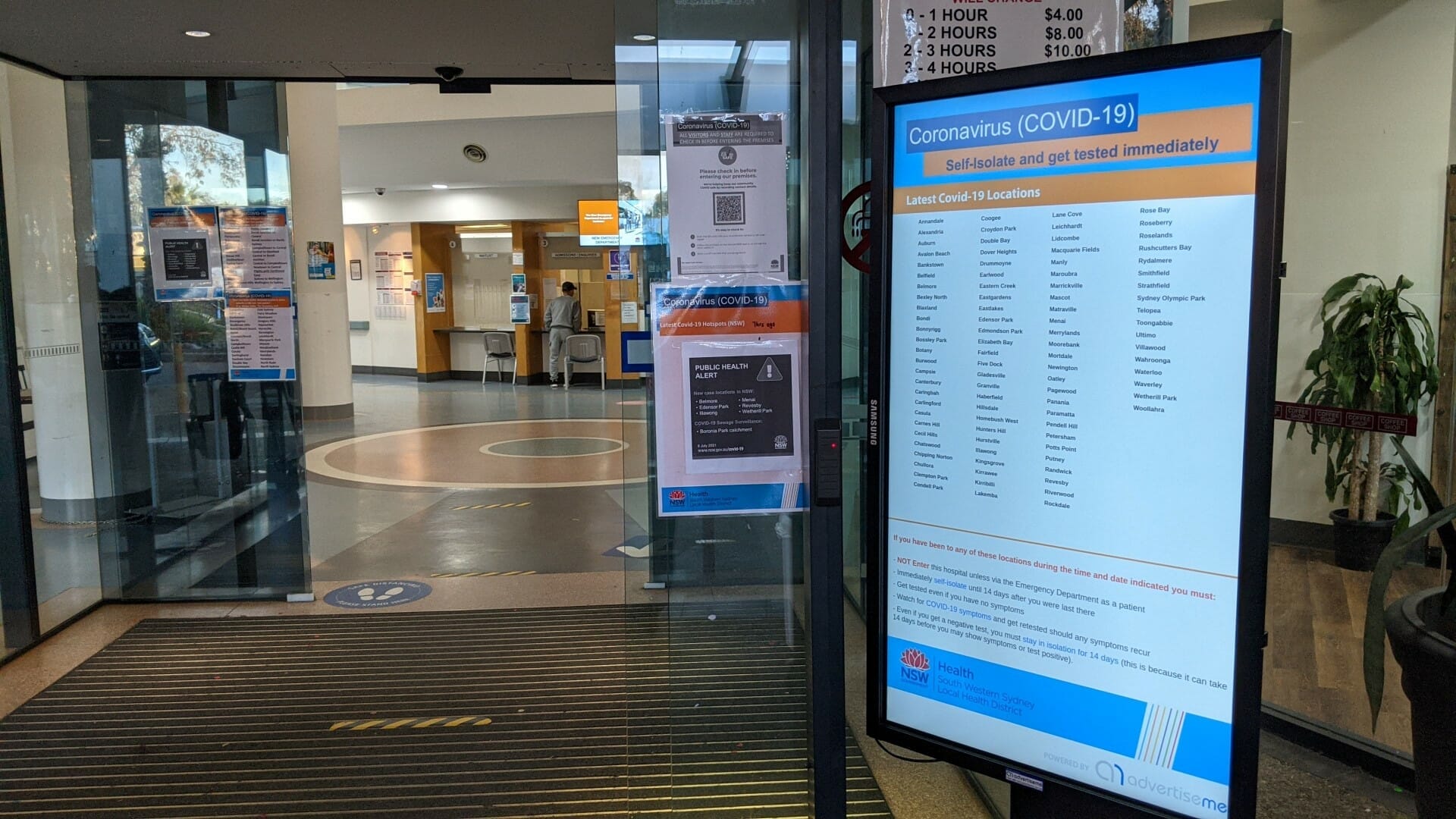
HOSPITAL PORTABLE STANDS FOR BANKSTOWN HOSPITAL
About this digital signage project We used our Digital [...]
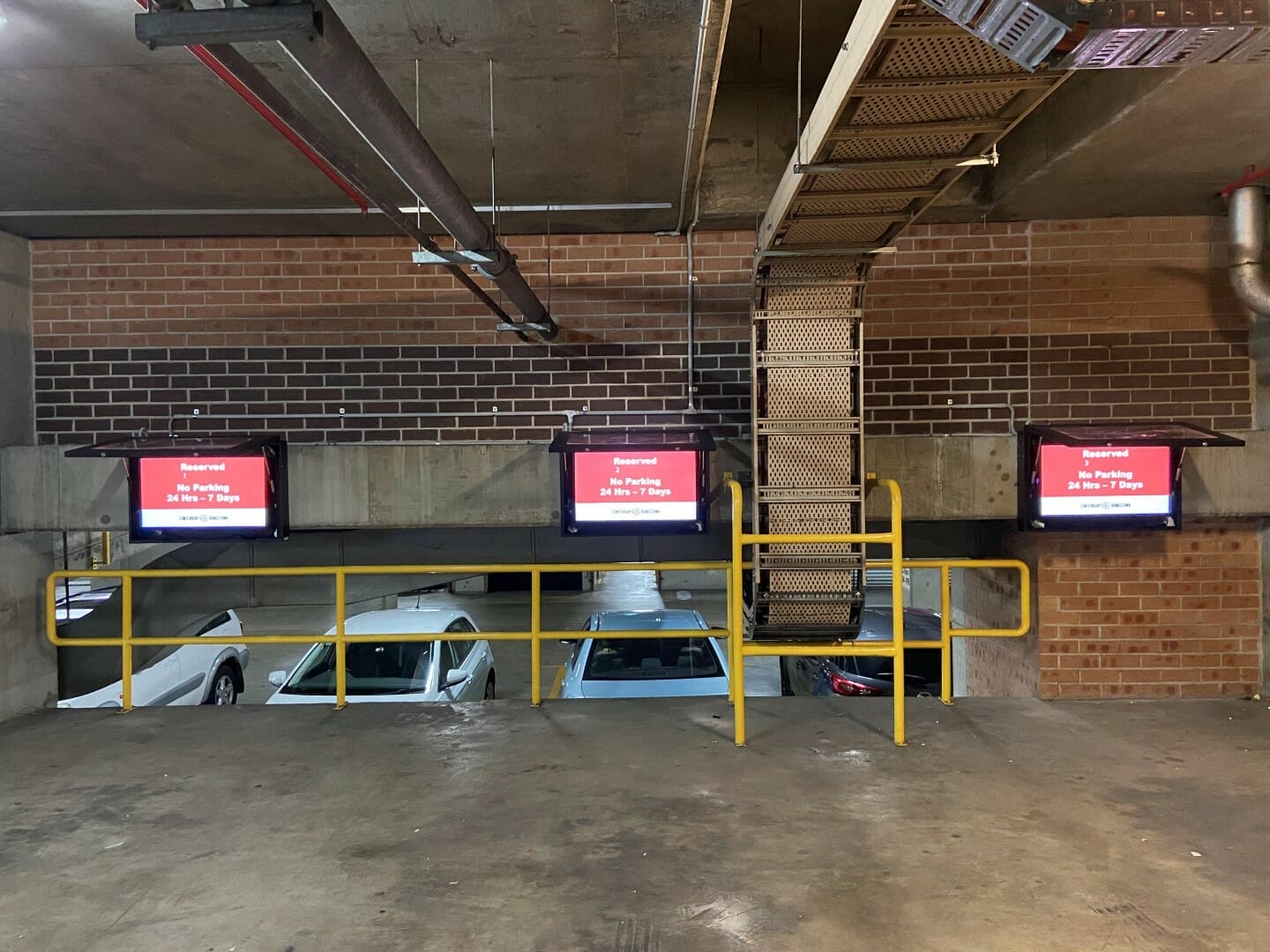
CAR PARK SYSTEM FOR COUNCIL
About this digital signage project We used our [...]
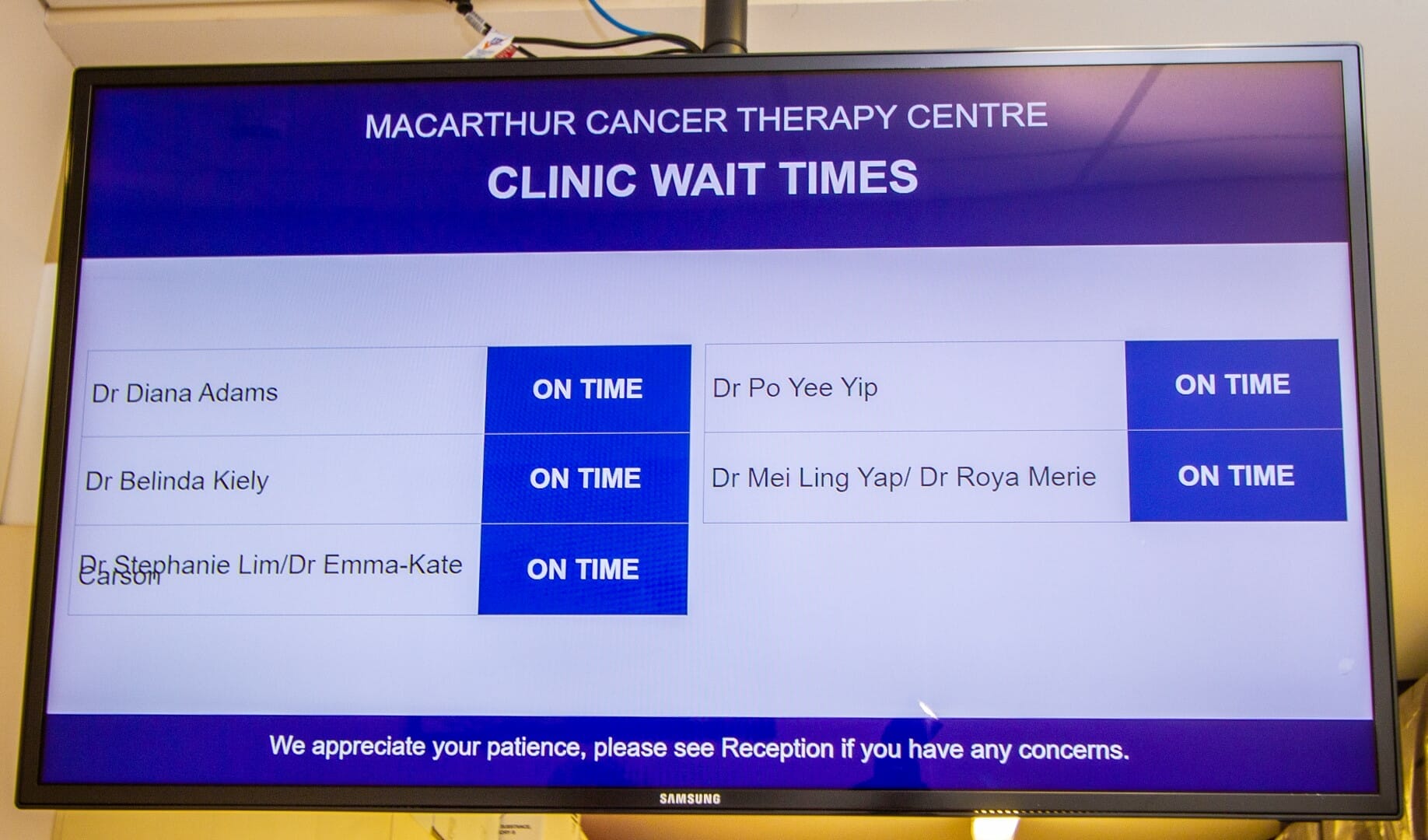
CLINIC WAIT TIMES FOR CANCER THERAPY CENTRE
About this digital signage project We used our [...]